
A frozen screen can make a gaming session feel more alarming than an ordinary app crash because a balance or unfinished action may be involved. The first priority is not to tap rapidly or install a repair utility from a search result. It is to preserve enough information to understand whether the action was recorded, then use the device and service’s official recovery paths. A technology guide can explain that sequence without promising that every interrupted game will resolve the same way.
Pause before repeating an action
If a button appears unresponsive, repeated taps may create uncertainty about what was submitted. Wait briefly for the interface to respond, then note the time and the last visible balance. If the phone still responds to system controls, take a screenshot of the frozen screen. Record the game title and any transaction reference. Do not share a screenshot publicly if it contains account or payment details.
The phrase slot zeus may appear in a search for help with a themed game, but a link carrying that phrase does not verify the game or document its interruption rules. If the destination is unrelated, do not rely on it to diagnose the session. The relevant sources are the service’s official rules, account activity, and support channel.
Separate the phone problem from the account problem
A device can freeze because an app crashed, memory is low, a browser tab stalled, or a network connection failed. Those possibilities do not tell you what the remote service recorded. Restarting the app may restore the display, but the account history is needed to check whether the action completed. Review the transaction list after reopening through a known address or app. If the record is unclear, stop play and ask support for the specific transaction status.
Avoid assuming that a missing animation means a missing outcome. Conversely, do not assume that an animation proves the account was updated correctly. The visual layer and the recorded transaction can diverge during a connection problem. A clear support request identifies the time zone, device model, software version, app version, and the steps immediately before the freeze.
Use official device troubleshooting first
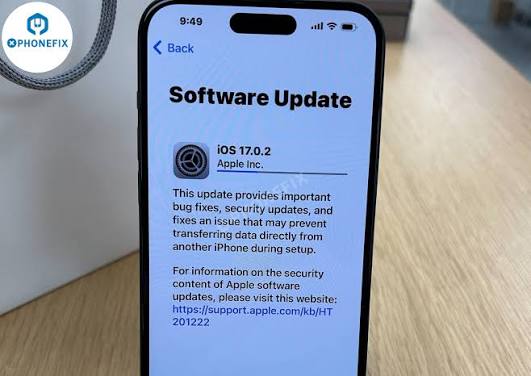
For a single app problem, close and reopen the app or tab after noting the evidence. Check for an official update, sufficient storage, and a stable network connection. If the whole iPhone is unresponsive, use Apple’s documented restart procedure for the specific model rather than following an arbitrary key sequence copied from a promotional page. A restart is not a substitute for checking the gaming account afterward.
Do not erase the phone or run a deep system repair merely because one game screen froze. Broad repair operations can affect data and may introduce new problems. If the device repeatedly freezes across many apps, back up important data and seek official support or qualified help. The right response depends on whether the issue is isolated to one service or affects the system more broadly.
Be careful with “fix” downloads
Search results for a frozen game can lead to software offering one-click repair. Before installing anything, verify the developer and official download source, read what the tool can change, and back up the device. A third-party repair utility cannot determine the correct result of a remote gaming transaction; it addresses device behavior, if it addresses anything at all. Do not grant it account credentials or payment information.
The term ZEUS222 may appear beside a suggested login or troubleshooting link. A brand-like label does not authenticate the destination. Use an independently verified address to sign in, especially after a crash when a person may be eager to recover a balance. An unfamiliar page asking for a one-time code or payment to “restore” a game outcome is a warning sign.
Reconcile the account record
After the device works again, compare the balance before the freeze with the account history and any bank transaction. Look for the action at the recorded time. If there is a reversal, note it; if there is a result, compare it with the published interruption rule. Do not continue playing while the record remains disputed, because further transactions can make the sequence harder to reconstruct.
Keep a written support ticket rather than relying only on a chat that may disappear. State the expected result, the recorded result, and the rule you believe applies. Ask for a reference number and a written explanation. Different services and jurisdictions have different dispute paths, so do not assume that one universal fix applies.
Protect your data during support
A legitimate support process may ask for transaction details, but it should not require your password or one-time authentication code. Redact unrelated personal information from screenshots while keeping the timestamp and relevant reference visible. Save the original privately. If a person claiming to be support moves the conversation to an unverified messenger account, return to the documented channel.
A phone freeze can also coincide with a fraudulent message: “Your session failed; sign in here to recover funds.” The Federal Trade Commission advises using a known website or phone number instead of links in unexpected account messages. That advice is especially useful when a person is worried about money and may act quickly.
Prevent repeat confusion
Before another session, locate the game’s rules for interrupted play and the account history panel. Keep the app and operating system updated through official channels. Maintain a device backup as part of ordinary phone care. Set a spending boundary that does not depend on recovering a disputed outcome through more play. These steps do not eliminate every freeze, but they make a problem easier to document and resolve.
A useful repair guide is modest about what it can know. It can help a reader recover the device display and collect evidence. Only the platform’s records, rules, and appropriate dispute process can settle what happened to the account.
Frequently asked questions
Should I immediately restart after a game freezes?
First note the time and capture the visible state if the device allows. Then use appropriate official troubleshooting and check account history.
Can a phone repair app recover a missing payout?
It cannot establish or change a remote game’s correct transaction record. Use the operator’s documented support and dispute process.
What should I include in a support request?
Time and time zone, device and app versions, game name, transaction reference, screenshots, and a concise description of what you expected versus what the account shows.
After the immediate issue is documented, review the device settings that can affect a long session. Low available storage, an outdated operating system, and an app waiting for an update can all make troubleshooting harder, but none by itself proves why a particular game froze. Change one factor at a time and keep a short note of what changed. If the same error returns, that history is more useful to support staff than an account of random fixes. Treat account security as a separate check: confirm that the service address is the one you normally use, review recent activity through the official account page, and change credentials if you see an unfamiliar sign-in. Avoid sending a password or one-time code with the support ticket. A calm record of the event protects you from both accidental duplicate actions and hasty decisions made while the screen is unresponsive.